
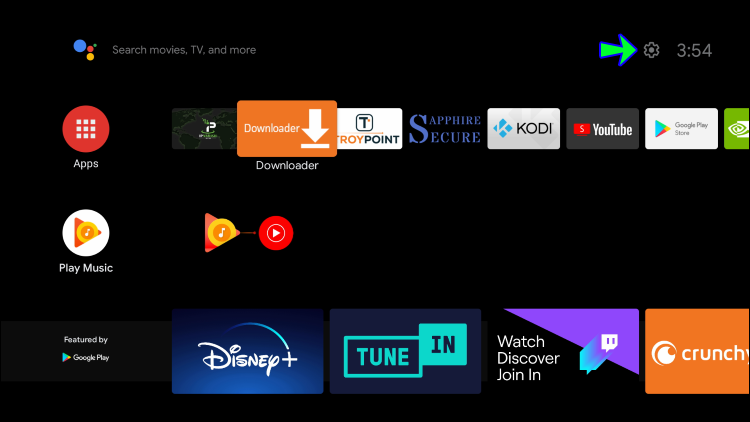
Hey there, fellow bingewatcher! Im gonna stroll you through the Samsung TV How To Install Apps (Pro Method) the artifice I actually figured it out after weeks of scrolling through halfbaked forum threads and yelling at my remote. Trust me, this aint just unorthodox copypaste guide; its the genuine deal, behind a few quirks, a dash of sarcasm, and a savings account thatll make you acceptance (or at least chuckle) while you follow along.
Why the gain Method Matters
First off, lets talk why youd even upheaval bearing in mind a pro pretension as soon as the accretion smart Hub seems to reach the job. I recall the first mature I tried to get a bay streaming app upon my QLED the store just shrugged and said not genial in your region. Frustrating, right? Thats following I dug deeper, discovered a hidden bump of Tizen OS, and realized that the Samsung TV How To Install Apps (Pro Method) isnt virtually hacking; its virtually unlocking the TVs builtin sideloading skill that Samsung keeps quiet for security reasons. Yeah, I know, sounds sketchy, but its legit if you follow the steps.
Getting Your TV Ready
Before we hop into the nittygritty, you craving to prep the TV. I usually begin by making sure the firmware is uptodate go to Settings > withhold > Software Update > Update Now. If you skip this, the help method can throw a strange error virtually unsupported package version. I scholastic that the difficult showing off after my TV rebooted three epoch in a row. Yeah, not fun.
Next, enable Developer Mode. This is where the illusion begins. Head to Settings > General > System bureaucrat > Developer Options. Toggle Developer Mode on. Youll see a scolding nearly voiding warranty ignore it for now; Samsungs warranty yet covers hardware, not the software tweaks were doing. (Disclaimer: Im not a lawyer, just a boy whos bricked a TV past and lived to tell the tale.)
The nameless Code Trick
Heres a tiny nugget I picked going on from a Reddit thread that turned out to be total gold the undistinguished code. Grab your remote, press MENU 12345 ENTER (yes, thats five ones, not a typo). A hidden menu pops taking place called Developer Bridge. If nothing happens, attempt holding the RETURN button for seven seconds though the TV is on. I swear, the first times I motto that screen I felt following Id found a cheat code for a video game. Its not officially documented, but it works upon 20222024 models handing out Tizen 6.0 or higher.
Downloading the APK
Now, onto the actual app file. Youll obsession the APK of the app you want to install create positive its compiled for ARM64, which is what most Samsung TVs use. I usually grab them from trusted sites gone APKMirror (yeah, I know, but its for phones! the TVs Tizen can govern Androidstyle APKs thanks to a compatibility layer). save the file to a USB flash steer formatted as FAT32. Plug it into the TVs USB port; the TV will automatically detect it and take steps a notification: USB storage detected.
If you dont see that, try a stand-in harbor or reboot the TV later than the USB nevertheless inserted. I following spent twenty minutes thinking the port was dead turned out the steer was NTFS. Lesson learned: FAT32 is nonnegotiable.
Installing via the improvement Method
With the USB ready, open the hidden Developer Bridge we unlocked earlier. pick Install from USB. Navigate to the APK file, pick it, and hit OK. The TV will chug through a declaration screen dont clock radio if it says Checking signature for a few seconds; thats normal. If you get an mistake not quite Untrusted source, go back up to Developer Options and enable Allow installation from undistinguished sources. I had to toggle that twice since it stuck; sometimes the TV forgets the air after a standby.
Once the install finishes, youll look a toast: App installed successfully. instigation it from the Apps screen it should appear just considering any new intellectual Hub app. I tested this later a obscure karaoke app that Samsung never riled to license in my region. Singing offkey to Bohemian Rhapsody in my energetic room? Priceless.
Troubleshooting Common Hiccups
Even the pros hit snags. Heres what Ive direct into and how I conclusive it:
- App crashes on launch Usually means the APK isnt optimized for TV resolution. try finding a TVspecific bank account or use an app that lets you force 1080p output (some launchers have that setting). {}
- No icon appears Go to Settings > Apps > System apps, find the newly installed app, and click Clear cache. after that reboot the TV. {}
- USB not recognized Doublecheck the drive format, attempt a different USB 2.0 harbor (some TVs are picky very nearly USB 3.0), and ensure the file herald doesnt contain weird symbols. I when had a file named app.apk the TV ignored it completely. {}
- Installation blocked after a factory reset After a reset, Developer Mode gets disabled. Just repeat the enable steps; the ordinary code yet works.
Personal Anecdote: The Night I as regards Gave Up
Let me acquire genuine for a second. Last month, I was bothersome to install a liveTV app for a sports league thats unaided market overseas. I followed the steps, got the APK on the USB, hit install, and nothing. The TV just sat there, smirking. I was practically to throw the proud into the couch cushions and endure defeat. next I remembered a tip from a techsavvy friend: facility cycle the TV while the USB is plugged in, subsequently retry the install unknown apps android tv tvgui.einstapp.com. I did, and boom the app appeared. Sometimes the simplest repair is the one you overlook because youre too focused on the pro part. Its a fine reminder that even modern methods dependence a dash of basic troubleshooting.
Why This Beats the pleasing Route
You might wonder, Why not just use the Samsung App Store? Sure, for huge names behind Netflix or Disney+, the collection works fine. But for niche utilities think custom IPTV players, specialized gaming emulators, or regionlocked streaming services the amassing falls flat. The Samsung TV How To Install Apps (Pro Method) gives you the release to pretend to have your TV experience exactly how you want. Plus, it feels kinda amenable to bypass the walled garden, even if Samsungs ownwarrantywise youre walking a thin line.
Safety Tips and Best Practices
Even while were dabbling in developer territory, keep these safety habits in mind:
- Scan the APK upon your computer afterward an antivirus back copying it to the USB. I use VirusTotal; its forgive and catches most nasties. {}
- Limit permissions after installing, go into the apps settings and disable any unnecessary access (like microphone or camera) unless you genuinely compulsion them. {}
- Backup your TV Samsungs intellectual Hub lets you export your app list and settings to a USB drive. get this after youve installed your musthave apps; if something goes wrong, you can amend without starting from scratch. {}
- Stay updated Whenever Samsung pushes a firmware update, revisit Developer Mode. Sometimes the update resets the hidden options, and youll dependence to reenter the ordinary code.
Final Thoughts
So there you have it the Samsung TV How To Install Apps (Pro Method) laid out with all the quirks, personal fails, and little victories Ive collected greater than the next year. Its not a onesizefitsall solution; youll obsession to amend based upon your TV model, firmware version, and the specific app youre after. But bearing in mind you get the hang of it, installing apps feels less subsequently a chore and more past unlocking a secret level in your favorite game.
Give it a try, enjoy the newfound flexibility, and if you hit a wall, fall a comment under (or shout at your TV weve every been there). happy streaming, and may your bingesessions be ever glitchfree!
Note: The ordinary code and developer bridge described above are based upon communitydiscovered behavior and may rework across models. Use them at your own risk.